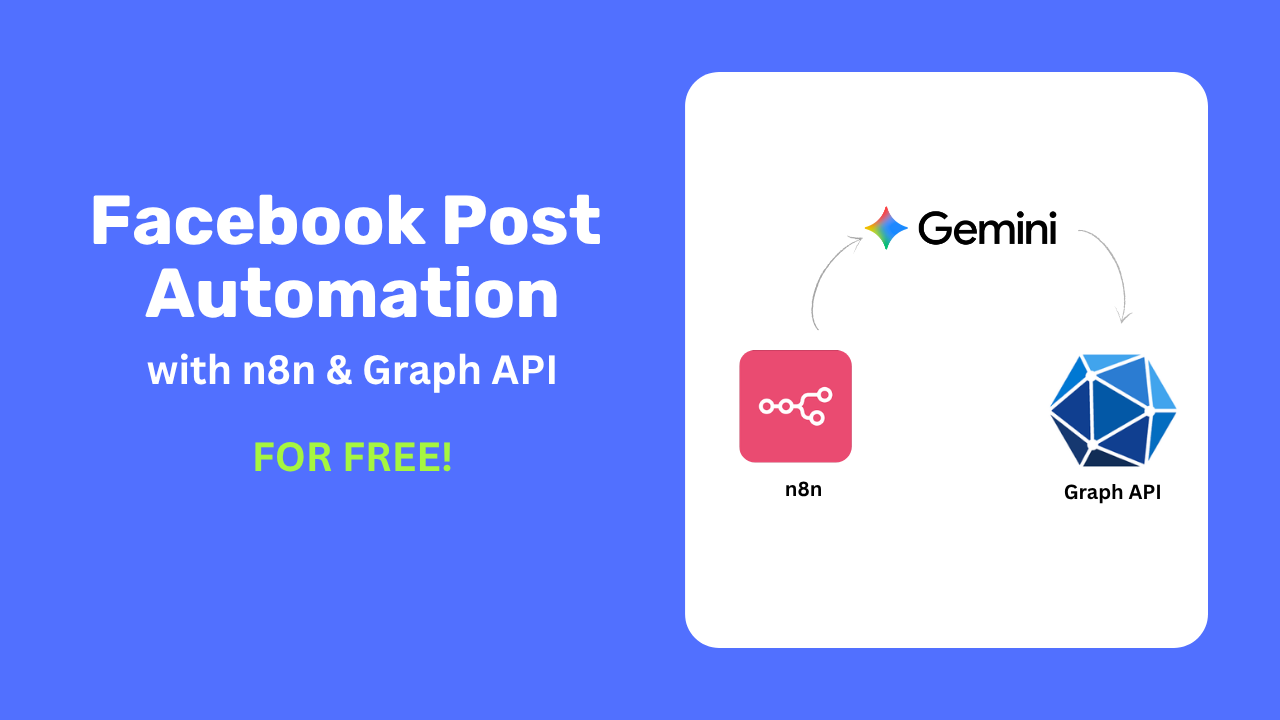
In this tutorial, I will show you how to automate Facebook page posts using n8n, Google Gemini API, and the Facebook Graph API – completely for free. With this setup, you can generate and publish up to 30 AI-generated Facebook posts per day, complete with images.
Watch the full video tutorial:
What You Will Need
- n8n installed on your local machine (free and open source)
- Google Gemini API key (free tier)
- Facebook Graph API access token
With the free Gemini API tier and a 2-hour posting interval, you can generate around 12 posts per day for your Facebook page – all fully automated.
Step 1: Set Up the Schedule Trigger
Create an empty workspace in n8n and start from scratch. Add a Schedule Trigger node and set it to run every 2 hours. You can adjust the interval based on your needs, but keep in mind the free tier API limits.
Step 2: Get Your Free Gemini API Key
- Go to Google AI Studio
- Click Create API Key
- Choose an existing project or create a new one
- Generate and copy your API key
Check the free tier limits before setting your automation interval. The free tier is generous enough for daily posting.
Step 3: Configure Gemini in n8n
- In n8n, go to the top-right dropdown and select Create Credential
- Search for Gemini and select it
- Paste your Gemini API key – it gets tested automatically
- Add a Gemini node to your workflow
- Select the Gemini 2.5 Pro model
The Prompt
Write a prompt that instructs Gemini to generate two things: the post text content and an image generation keyword. Make sure to:
- Give clear instructions about the format you want
- Tell Gemini to pick random topics so you get varied content
- Check the Output content as JSON option
The output will be a JSON object with two keys: post and image keyword.
Step 4: Separate the JSON Keys with JavaScript
Add a Code node to separate the two keys from Gemini’s JSON output. Use this JavaScript code:
const content = $input.first().json.content.parts[0].text;
const data = JSON.parse(content);

return {
  post: data.post,
  "image keyword": data["image keyword"]
}
Make sure to use the correct key names if you customise your Gemini prompt.
Step 5: Generate the Image
- Add another Gemini node and select Generate Image
- Select your credential and choose an image generation model
- Pass the
image keywordfrom the previous Code node into the prompt field
If you hit the limit on one model, switch to another available model. The free tier models produce decent results for social media posts.
Step 6: Set Up the Facebook Graph API
This is the most involved step. You need a Facebook Developer account and a live app to post to your page.
Create a Facebook App
- Go to developers.facebook.com and create an account if needed
- Click My Apps then Create App
- Fill in the required information
- In the use cases tab, choose Other and click Next
- Select Business and click Next
- Click Create App
Make the App Live
To make your app live, you need a Privacy Policy URL and a Terms of Service URL. I recommend using real URLs for these. Add them in the app settings, save, and toggle the app to live mode.
Get Your Page Access Token
- Go to Tools and open the Graph API Explorer
- Select your app from the Meta App dropdown
- From the User or Page dropdown, select Get Page Access Token
- Log in and grant permissions to your page
- Add the required permissions to create posts
- Select the page you want to post to
- Copy the access token
Extend the Access Token
The default token expires in 1 hour, which is not enough for automation. To fix this:
- Go to Tools and open the Access Token Debugger
- Paste your token and click Debug
- Click Extend Access Token
- Copy the new long-lived access token
Step 7: Connect Facebook Graph API in n8n
- In n8n, create a new credential for Facebook Graph API and paste your extended access token
- Add a Facebook Graph API node to your canvas
- Select your credential
- Set the HTTP Request Method to
POST - Set the Graph API Version to
v23.0(or the current version) - Set the node to
meand the endpoint tophotos(since we are posting with images) - Check Send Binary File and set the input binary field to
data(the image output name) - Add a query parameter with name
messageand drag thepostvalue from the Code node into the value field
Step 8: Test and Activate
Execute the final node to test. If everything is configured correctly, you will see a post ID in the output, which means the post was successfully published to your Facebook page.
Once confirmed, activate the workflow and n8n will automatically generate and post content to your Facebook page at the interval you set.
Complete Workflow Summary
Here is the full n8n workflow from start to finish:
- Schedule Trigger – runs every 2 hours
- Gemini Node – generates post content and image keyword as JSON
- Code Node – separates the JSON into post text and image keyword
- Gemini Image Node – generates an image from the keyword
- Facebook Graph API Node – publishes the post with the image to your page
Source Code
JavaScript Code Node (JSON Separator)
const content = $input.first().json.content.parts[0].text;
const data = JSON.parse(content);

return {
  post: data.post,
  "image keyword": data["image keyword"]
}
Facebook Graph API Settings
- Method: POST
- Graph API Version: v23.0
- Node: me
- Endpoint: photos
- Send Binary File: Yes
- Binary Field: data
- Query Parameter: message = (post content from Code node)
If you want to see how to install n8n on your local machine for free, let me know in the comments below.
Need a custom automation built for your business? Get in touch and let’s talk about your workflow.
